

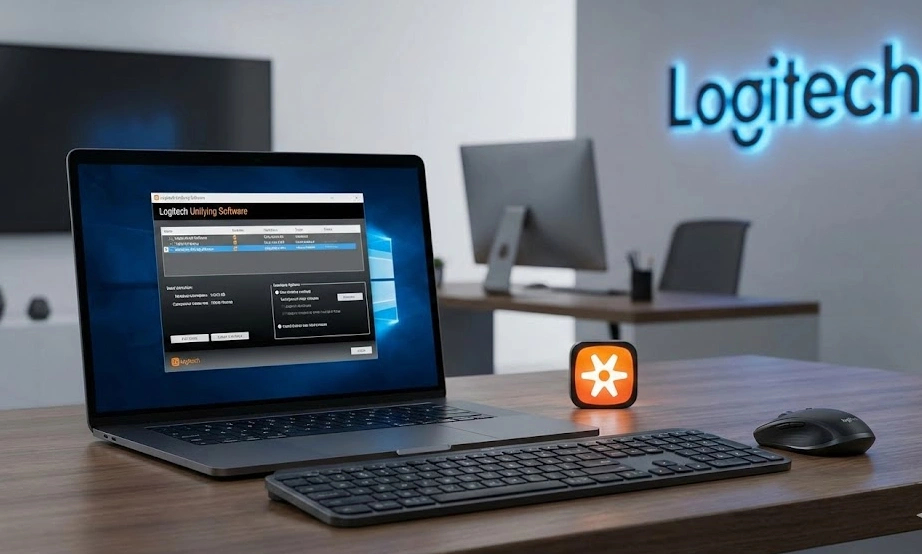
Many people buy a Logitech keyboard or mouse expecting it to work instantly. Then something confusing happens. The device will not connect, the receiver is not detected, or a new keyboard refuses to pair. In most cases the issue is simple. The device just needs the Logitech Unifying Software.
This small tool solves a common problem. It allows multiple Logitech devices to connect through one tiny USB receiver. Instead of using separate receivers for each device, everything runs through a single connection. Many users rely on different utilities to manage their devices and systems. If you want to understand how other productivity tools work, you can explore our software tools hub for more technical guides.
In this guide you will learn how to download Logitech Unifying Software, install it correctly, pair devices, fix connection issues, and understand how the Unifying receiver works. Each section builds on the previous one so you can move from installation to troubleshooting without confusion.
What is Logitech Unifying Software?
Logitech Unifying Software is a small application that lets you connect several Logitech wireless devices to one USB receiver. Instead of plugging a separate receiver for every mouse or keyboard, the software allows up to six compatible devices to work through a single receiver.
This simple feature makes a big difference for laptop users and office setups. USB ports stay free and desks remain cleaner. Understanding how device management software works is easier when you explore similar technical tools like the MeetShaxs update guide, which explains how software utilities improve system compatibility.
The software works with most major operating systems including Windows and macOS. Linux users can manage Unifying receivers through a utility called Solaar.
Once installed, the software detects compatible devices automatically and guides you through the pairing process. Because of this, even new users can connect devices without technical knowledge.
If you regularly use wireless peripherals, understanding the Logitech Unifying receiver explained later in this guide will make the pairing process much easier.
Key Benefits of Logitech Unifying Software
Using this software provides several practical advantages for everyday users and office environments.
Connect multiple Logitech devices to one receiver and free up USB ports.
Pair up to six compatible keyboards, mice, or presenters with a single connection.
Manage wireless devices easily through a simple interface.
Reconnect devices quickly if a receiver is replaced or lost.
Download the software free from Logitech.
These benefits become more noticeable once you start pairing devices, which we explain later in the device pairing section.
Supported Logitech Devices
Not every Logitech device supports the Unifying receiver. Devices must display the small orange Unifying logo to work with the software.
Common compatible devices include:
Device Type | Compatible Examples
Keyboard | K270, K350, K780, K800
Mouse | M185, M510, M705, MX Master Series
Other devices | Logitech presenters and numeric keypads
Before downloading the software, always confirm that your device supports the Unifying system. If the logo is missing, the device likely uses a different wireless technology. Understanding device compatibility is similar to learning how developers manage hardware and software together, which is discussed in our engineering career guide for aspiring developers.
Why Logitech Unifying Software is Important
Many users run into problems when they try connecting multiple wireless devices without understanding how receivers work. Standard wireless receivers usually pair with only one device.
This creates two common problems.
First, laptops quickly run out of USB ports.
Second, replacing a lost receiver becomes difficult.
Logitech Unifying Software solves both problems. It centralizes connections through a single receiver and allows devices to reconnect quickly through the pairing tool.
Another advantage is firmware support. Firmware updates can improve connection stability and sometimes fix minor bugs that affect device behavior.
Because of these features, the software becomes especially useful in offices where several Logitech peripherals are used on one computer.
How to Download Logitech Unifying Software
Downloading the software is simple, but it is important to download it from the official Logitech support page.
Follow these steps carefully.
Open the Logitech support website.
Search for Logitech Unifying Software download.
Choose your operating system such as Windows or macOS.
Click the download button.
Save the installer to your computer.
Once the download finishes you can proceed directly to the installation process explained in the next section.
Helpful tips for downloading
Use the official Logitech website whenever possible.
Avoid third party download portals to prevent outdated installers.
Check system requirements before installing.
Once downloaded, the next step is installation.
Installing Logitech Unifying Software
The installation process takes only a few minutes and requires very little configuration.
Open the installer file that you downloaded earlier.
Accept the license agreement.
Continue with the default installation settings.
Complete the setup and close the installer.
After installation the software will appear in your Applications folder or Start menu.
Restarting your computer is recommended. This ensures all drivers load correctly before you begin pairing devices.
Now that the software is installed, you can move to the most important step, connecting your devices.
Pairing Devices Using Logitech Unifying Software
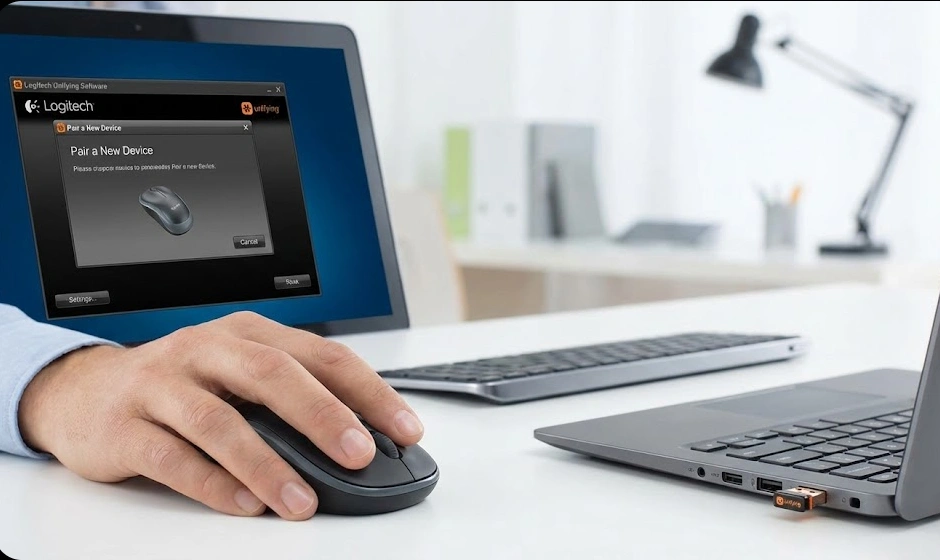
Pairing devices is where the Unifying software becomes useful. It guides you through each step and confirms when a device is successfully connected.
Open the Logitech Unifying Software from your system menu.
Click the option to add a new device.
Insert the Unifying receiver into a USB port if it is not already connected.
Turn the wireless device off and then on again to trigger detection.
Wait for the software to recognize the device and follow the instructions displayed on screen.
Once the pairing process completes, the device will appear in the connected device list.
Each receiver can manage up to six devices. This makes it possible to run a mouse, keyboard, and other accessories through a single receiver.
If pairing fails, restart the software and repeat the process.
Troubleshooting Logitech Unifying Software Issues
Even though the software works reliably most of the time, connection issues can still happen. Fortunately most problems have simple solutions.
Common problems and fixes
Mouse not working
Replace batteries and reconnect the device using the pairing tool.
Keyboard not responding
Restart the computer and re pair the keyboard.
Receiver not detected
Try a different USB port or reinstall the software.
Software will not open
Run the application as administrator or temporarily disable security software.
If the receiver still does not appear, unplug it and reconnect it after restarting the system.
These steps fix most connection problems users experience with wireless Logitech devices. Troubleshooting skills are important across all technical fields.
Many beginners start developing these abilities through practical examples like those shown in our software testing guide.
Logitech Unifying Software on Mac and Linux
The pairing process works almost the same on Mac systems as it does on Windows.
Mac users simply download the macOS installer, install the software, and pair devices through the same pairing wizard.
Linux systems usually recognize Logitech devices automatically. However, users who want advanced controls often install a tool called Solaar. This program allows device pairing, battery monitoring, and connection management.
Because Linux distributions vary, compatibility should always be checked before installing additional utilities.
Understanding Logitech Unifying Receivers
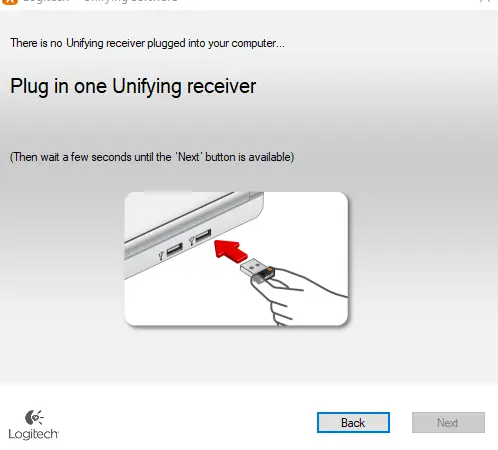
To understand why the software works the way it does, it helps to understand the receiver itself.
A Logitech Unifying receiver is a very small USB device that communicates with wireless peripherals using the 2.4 GHz frequency band.
Its main advantage is the ability to connect several devices at once.
Receiver details
Feature | Description
Maximum devices | Up to six devices
Operating range | About 10 meters
Connection type | 2.4 GHz wireless
Supported hardware | Logitech Unifying compatible devices
Because the receiver is so small it often stays permanently connected to laptops or desktop computers.
Logitech Unifying vs Logitech Bolt
One topic that often causes confusion is the difference between Logitech Unifying and Logitech Bolt.
Unifying is the older receiver system designed for general wireless peripherals.
Bolt is a newer technology focused on stronger security and enterprise environments.
The two systems are not compatible with each other. Devices built for Bolt cannot connect through Unifying receivers.
However many Logitech peripherals still support the Unifying system, which is why the software continues to be widely used.
Understanding this difference can save time when troubleshooting connection issues.
What to Do if You Lost the Unifying Receiver
A lost receiver is a common issue.
If your device originally used a Unifying receiver, you can usually replace it with another Unifying receiver and pair the device again using the software.
Steps are simple.
Plug the new receiver into your computer.
Open the Unifying Software.
Start the pairing process and reconnect the device.
This feature is one of the biggest advantages of the Unifying system.
Optimizing Logitech Device Performance
After pairing devices successfully, a few simple habits help maintain reliable performance.
Keep wireless devices within normal range of the receiver.
Replace batteries when low battery warnings appear.
Avoid placing receivers near strong wireless interference sources.
Install firmware updates when available.
These small steps help prevent connection drops and keep devices working smoothly.
FAQs
Can all Logitech devices use the Unifying Software?
No, only Logitech devices with the unifying logo are compatible. Devices without the logo will not pair using this software, so always check the logo before attempting to connect.
How many devices connect to one receiver?
A single Logitech Unifying receiver can connect up to six devices simultaneously, including mice and keyboards. This allows seamless multi-device management with just one USB port.
Is the software free?
Yes, Logitech Unifying Software is completely free. You can download it directly from Logitech’s official website, ensuring safety and access to the latest updates.
Why is my Logitech mouse not working?
Check the mouse batteries, ensure the USB port is functional, and re-pair the device using the Unifying Software. Most connectivity issues are resolved with these simple steps.
Can I use it on Mac and Linux?
The software supports MacOS 10.10+ natively. For Linux, some distributions require Solaar, a third-party tool, to manage Logitech Unifying devices effectively.
How do I update Logitech Unifying Software?
Open the software and click “Check for Updates.” Always install the latest version to ensure compatibility, security, and optimal device performance.
Conclusion
Logitech Unifying Software makes managing wireless devices simple. It allows keyboards, mice, and other accessories to connect through one small receiver while keeping desks organized and USB ports free.
Once installed, the software helps pair devices quickly, reconnect peripherals if a receiver is replaced, and troubleshoot common connection problems.
By following the steps in this guide you can download the software, pair devices correctly, and maintain stable connections across all your Logitech peripherals.
Keeping the software updated and understanding how the Unifying receiver works will ensure reliable performance for years to come.
If you have questions about software tools or want to suggest new topics, you can reach our team through the contact page.
Great tips on pairing devices, especially the section about troubleshooting. It’s really helpful to know that the software works on both Mac and Linux, as compatibility can often be a pain point.
If you’re exploring your style through seasonal color analysis, tools like Color Analysis Pro or multiple free online quizzes can be a terrific start to understanding your personal palette. For example, if you’re questioning whether you belong to the deep summer color season, learning about the deep summer palette—known for its crisp, muted, and soft hues—can truly help in choosing clothing and makeup that complement your natural features.
If you want a more reliable assessment, AI color analysis apps supply personalized insights by scanning your skin tone, including widely-used options for yellow skin tone colors to wear or even specialized palettes like soft autumn and light summer. For those questioning how to cancel Color Analysis Pro or navigate its features, instructions and community tips are commonly shared on forums and certified sites how to tell your color season[/url] . This way, you can research seasonal colors, hair color trends for 2026, and even virtual hair color try-ons without problems.
tuition alone may reach $40,000 per year. Degrees teach foundational concepts like algorithms, data structures, and systems design, which prepare you for a wide range of tech roles. Graduates often get stable jobs in large