

Modern computers are faster, more compact, and more powerful than ever before. But that performance comes with one unavoidable challenge: heat.
Today’s CPUs, GPUs, and NVMe drives can generate a significant thermal load, especially during gaming, video editing, rendering, or AI workloads. If cooling isn’t properly managed, your system can become loud, unstable, and slower than it should be.
This is where fan control software becomes essential.
Instead of relying on basic motherboard defaults, modern fan control tools allow you to customize fan curves, monitor multiple sensors, and create cooling profiles that balance performance, temperature, and noise.
For readers who want to understand the fundamentals of PC cooling systems, you can explore the Computer Cooling page on Wikipedia, which explains the hardware behind airflow and thermal management.
In this guide, we’ll walk through everything you need to know about PC fan control software including how it works, the best tools available, how to create effective fan curves, and how to troubleshoot common cooling issues.
By the end, you’ll understand how to make your PC cooler, quieter, and more stable.
Why PC Fan Control Matters in 2026
Modern hardware pushes thermal limits more than ever before. If cooling is not optimized, several problems can appear quickly.
Understanding these issues helps explain why fan control software is now considered a must-have tool for PC enthusiasts and gamers.
Thermal Throttling
When CPUs or GPUs reach high temperatures, they automatically reduce clock speeds to prevent damage.
This process is known as thermal throttling, and it can significantly reduce gaming performance or slow down heavy workloads.
Proper fan curves help maintain safe temperatures and prevent performance drops.
Unnecessary Noise
Default motherboard fan profiles often react aggressively to temperature changes.
This results in fans ramping up and down constantly, creating inconsistent and distracting noise.
Fan control software allows smoother curves, which keeps your system quieter.
Component Wear
Heat accelerates hardware aging.
High temperatures can affect:
- VRMs
- SSD controllers
- GPU memory
- Capacitors
- Fan bearings
Maintaining lower temperatures helps extend the lifespan of your PC components.
Reduced System Stability
Overheating can cause:
- system crashes
- unexpected restarts
- freezes during gaming or rendering
A properly tuned cooling setup keeps temperatures stable during long workloads.
Dust Accumulation
Poor airflow patterns can pull dust into your system faster.
Smart fan configuration helps maintain balanced airflow, which reduces dust buildup and improves long-term cooling efficiency.
Understanding how different software tools work together is important, especially when learning the basics of software quality testing and system stability.
BIOS vs Fan Control Software: Which Is Better?
There are two main ways to control PC fans: BIOS-level control and software-level control.
Both approaches have advantages, but they serve different types of users.
Using BIOS or UEFI Fan Control
BIOS fan control operates at the motherboard level.
It is simple, stable, and works even before your operating system loads.
Pros
- Very stable
- No additional software required
- Works before Windows starts
Cons
- Limited customization
- Cannot use GPU temperature sensors
- Few curve options
- Not ideal for complex cooling setups
BIOS control works well for basic systems, but enthusiasts often need more advanced options.
Using Fan Control Software in Windows
Software-based fan control provides far more flexibility.
You can create complex fan curves, combine temperature sensors, and build multiple cooling profiles for different workloads.
Pros
- Real-time temperature monitoring
- Multi-sensor fan curves
- GPU-based cooling control
- Multiple profiles (silent, gaming, workstation)
Cons
- Requires a background application
- Possible conflicts with motherboard utilities
For gamers, creators, and PC builders, software-based fan control is usually the preferred method. If you’re regularly installing system utilities or performance tools, it’s also useful to understand software update management to keep programs running smoothly.
How Fan Control Works
Before choosing software or creating fan curves, it helps to understand how PC fans are actually controlled.
PWM vs DC Fans
Most computer fans fall into two categories.
PWM Fans (4-Pin)
PWM fans allow precise speed control and smooth ramping.
They are the preferred choice for modern PCs.
DC Fans (3-Pin)
DC fans adjust speed through voltage changes.
They work well but offer less accurate control.
Most modern motherboards support both types, although PWM fans provide better control for advanced tuning.
Fan Header Types
Motherboards include several fan headers, each designed for specific components.
Common headers include:
- CPU_FAN
- CPU_OPT
- SYS_FAN / CHA_FAN
- PUMP_FAN
- AIO_FAN
Understanding these headers helps ensure fans are connected to the correct controller.
Temperature Sensors Used in Fan Control
Advanced fan control tools allow fans to respond to different temperature sensors.
Common sensors include:
- CPU temperature
- GPU temperature
- VRM temperature
- motherboard chipset
- NVMe SSD temperature
- liquid cooling temperature
- external probes
Modern software can combine multiple sensors to create smarter fan curves.
Best Fan Control Software Tools in 2026
After analyzing community discussions, Reddit recommendations, and user reviews, several tools consistently stand out.
These tools offer reliable performance, strong hardware compatibility, and flexible control.
1. FanControl (GetFanControl by Rem0o)
This is currently one of the most popular fan control utilities for Windows.
It is lightweight, powerful, and widely recommended in PC hardware communities.
Features
- Custom fan curves
- Multi-sensor fan control
- CPU + GPU curve mixing
- Real-time monitoring
- Clean and modern interface
Because of its flexibility and strong hardware support, many enthusiasts consider it the best free fan control software available today.
2. FanCtrl
FanCtrl is a lightweight open-source alternative focused on simplicity.
It works well for users who want a straightforward interface without complex configuration.
Features
- Temperature-based triggers
- Simple fan profiles
- Open-source development
- Low system resource usage
This makes it a good option for users who prefer minimal software.
3. Argus Monitor
Argus Monitor is a premium tool designed for advanced users and professional workstations.
Features
- Highly accurate temperature monitoring
- GPU fan control
- SSD health monitoring
- airflow zoning support
It is commonly used by video editors, engineers, and heavy workstation users. Professionals who work with diagnostic and hardware monitoring tools may also use advanced utilities like vehicle diagnostic software for specialized technical environments.
4. Manufacturer Software Tools
Many motherboard brands include their own fan utilities.
Examples include:
- ASUS Armoury Crate (FanXpert)
- MSI Center
- Gigabyte Control Center
- ASRock A-Tuning
While convenient, these tools are sometimes heavier and less flexible than dedicated fan control software.
How to Set Up Fan Control Software
Once you install a fan control tool, the next step is building an effective cooling strategy.
This process usually involves three main steps.
Step 1: Identify All Fans
Start by identifying every fan in your system.
You should determine:
- intake vs exhaust
- case location (front, rear, top, bottom)
- fan type (PWM or DC)
- motherboard header connection
This information helps create accurate fan curves later.
Step 2: Assign Fans to Temperature Sources
Each fan should respond to the most relevant sensor.
Typical configuration:
CPU fans → CPU temperature
Case fans → GPU temperature
Radiator fans → liquid temperature
This ensures cooling reacts to the actual source of heat.
Step 3: Create a Fan Curve
Fan curves determine how fast fans spin at different temperatures.
Common curve types include:
Linear Curve
Smooth and gradual fan ramping.
Step Curve
Silent at low temperatures, aggressive under heavy load.
Mixed Curve
Combines multiple sensors for smarter cooling.
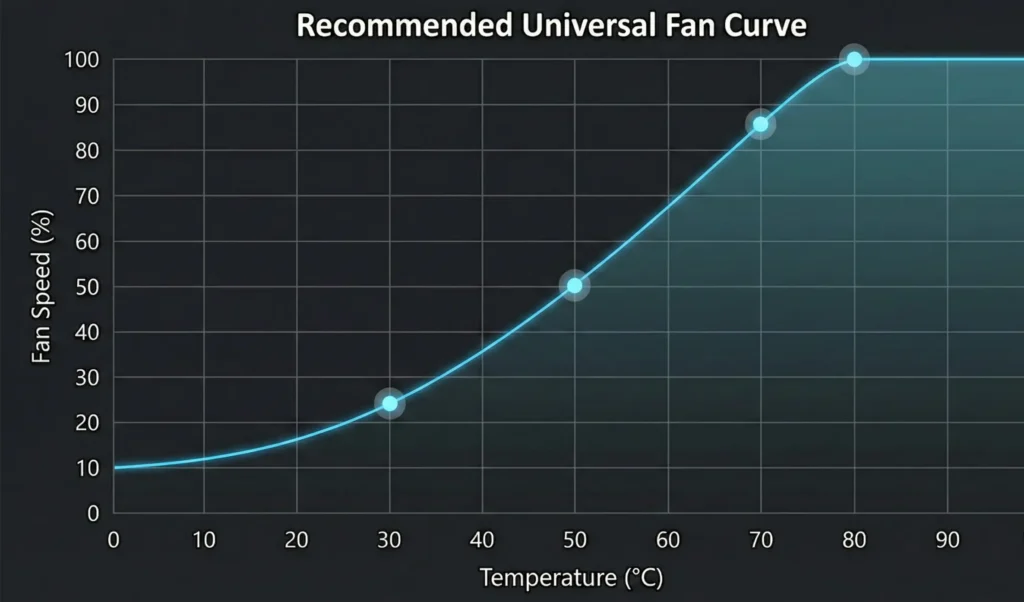
Example Fan Curve
A balanced curve for most PCs might look like:
30°C → 25%
40°C → 40%
50°C → 55%
60°C → 70%
70°C → 85%
80°C → 100%
This setup keeps systems quiet during light use while still providing strong cooling during heavy workloads.
Airflow Optimization: The Core of Good Cooling
Even the best fan control software cannot compensate for poor airflow.
Proper case airflow plays a major role in temperature control.
Intake vs Exhaust
A good rule is slightly positive pressure, meaning more intake fans than exhaust fans.
This helps bring cool air into the case while reducing dust accumulation.
Avoid Airflow Blockages
Common airflow problems include:
- clogged dust filters
- tight front panels
- poorly positioned radiators
- messy cable management
Fixing these issues often reduces temperatures significantly.
Correct Airflow Direction
Most PCs follow this airflow pattern:
Front / Bottom → Intake
Rear / Top → Exhaust
This configuration uses natural heat movement to remove hot air efficiently.
Laptop Fan Control: What’s Possible?
Laptop cooling is more restricted than desktop systems.
Many manufacturers lock fan control inside firmware, limiting customization.
However, some tools may still provide partial control.
Examples include:
- Notebook Fan Control
- Lenovo Legion Toolkit
- Dell or Alienware utilities
- ASUS Armoury Crate
Even with these tools, laptop cooling usually cannot match desktop-level customization.
Troubleshooting Common Fan Control Software Issues
Sometimes fan control tools may not behave as expected.
Here are some common problems and their causes.
Fans Not Detected
Possible causes include:
- incorrect motherboard header
- unsupported fan hub
- BIOS configuration issues
Checking BIOS fan settings often resolves detection problems.
Fans Ignoring Custom Curves
This can happen when:
- the CPU overheats and BIOS overrides the curve
- manufacturer software conflicts with your fan tool
- AIO pump detection interferes with control
Using only one fan control tool at a time helps prevent conflicts. If software errors appear or monitoring tools stop responding, reviewing common software error fixes can help resolve compatibility issues.
Fan Stuck at 100%
Possible reasons include:
- sensor malfunction
- motherboard failsafe protection
- power delivery problems
Resetting fan profiles or updating BIOS often solves this issue.
Advanced Techniques for Fan Control Software
Once basic cooling is working properly, advanced users can experiment with additional tuning methods.
Dual Sensor Fan Curves
Combining CPU and GPU temperatures allows fans to respond to both workloads.
This is especially helpful for gaming systems.
Zero RPM Mode
Some setups allow fans to stop completely at idle.
This creates silent operation during light workloads.
Multiple Cooling Profiles
Different workloads may require different cooling behavior.
Common profiles include:
Silent mode
Gaming mode
Rendering mode
Switching between profiles allows better temperature control without unnecessary noise.
VRM and SSD Cooling
VRMs and NVMe drives often generate heat but are frequently ignored.
Adjusting case fan curves can improve airflow over these components.
Engineers and electronics enthusiasts sometimes combine cooling optimization with circuit simulations using electronics simulation tools to analyze hardware behavior.
PC Cooling Myths You Should Ignore
Many misconceptions about cooling still circulate in PC communities.
Understanding the facts helps build more efficient systems.
Myth 1: More Fans Always Improve Cooling
Fan placement and airflow balance matter more than total fan count.
Myth 2: AIO Coolers Always Beat Air Coolers
High-end air coolers can match or even outperform AIOs in sustained workloads.
Myth 3: Maximum RPM Equals Maximum Cooling
Airflow design, case layout, and static pressure matter more than raw fan speed.
Myth 4: Intake Fans Must Always Be in the Front
Bottom intake can significantly improve GPU cooling.
Use Cases for Proper Fan Management
Effective fan control benefits many different types of PC users.
Gaming PCs
GPU-based curves help maintain stable frame rates while reducing noise during gameplay.
Editing and Rendering Workstations
Long workloads require stable thermals to prevent performance drops.
Streaming PCs
Lower fan noise improves microphone quality during live broadcasts.
Silent PC Builds
Carefully tuned fan curves eliminate sudden fan bursts.
Overclocked Systems
Predictable cooling behavior helps maintain stable overclocking performance.
Future of Fan Control: AI-Enhanced Cooling
Cooling technology continues evolving alongside modern hardware.
Several innovations are already emerging.
AI-Based Thermal Prediction
Future systems may predict temperature spikes before they occur.
Machine Learning Fan Curves
Cooling profiles could adapt automatically based on user workloads.
Integrated Temperature Mapping
Future cooling systems may combine CPU, GPU, VRM, and SSD sensors into one intelligent control system.
Smart Fans with Built-In Sensors
Some modern fans already include microcontrollers that allow smarter autonomous operation.
FAQs About Fan Control Software
1. Is fan control software safe for my PC?
Yes, reputable fan control software is safe to use. These tools simply adjust fan speeds based on temperature sensors already built into your hardware. They do not modify hardware settings permanently and can actually improve cooling efficiency and reduce system noise.
2. What is the best fan control software for Windows PCs?
Popular options include FanControl by Rem0o, Argus Monitor, and FanCtrl. FanControl is widely recommended for gamers and PC enthusiasts because it supports advanced fan curves, multiple temperature sensors, and works with many motherboards and GPUs.
3. Can fan control software reduce PC fan noise?
Yes. Many PCs run fans aggressively using default BIOS settings. Fan control software allows you to create smoother fan curves so fans spin slower during light tasks while still increasing speed when temperatures rise.
4. Do I need fan control software if my BIOS already controls fans?
BIOS fan control works for basic setups, but software provides more flexibility. It allows you to create custom fan curves, use GPU temperatures as triggers, and switch between profiles like silent mode, gaming mode, or heavy workload mode.
5. Can I control GPU fans with fan control software?
Some tools allow GPU-based fan control, especially when using sensors from programs like HWiNFO or integrated GPU monitoring. This helps case fans respond to GPU temperatures during gaming, improving cooling where it matters most.
6. Why are my PC fans always running at full speed?
Fans running at maximum speed usually indicate high temperatures, incorrect BIOS settings, or software conflicts. Checking airflow, updating fan curves, and using only one fan control tool at a time often solves this issue.
7. Does fan control software improve PC performance?
Indirectly, yes. By keeping temperatures lower, fan control software helps prevent thermal throttling. When CPUs and GPUs stay cooler, they can maintain higher clock speeds for longer periods during gaming, rendering, or heavy workloads.
8. Can beginners use fan control software easily?
Yes. Most modern fan control tools include visual fan curve editors and temperature monitoring dashboards. Beginners can start with simple curves and gradually adjust settings to balance quiet operation and effective cooling.
Final Thoughts
Proper fan management is one of the simplest yet most impactful ways to improve your PC experience. Well-tuned cooling can improve performance, stability, hardware lifespan, and overall comfort while reducing unnecessary noise. Whether you configure fans through BIOS or use advanced fan control software, the goal remains the same: maintain safe temperatures while keeping the system quiet and efficient. When combined with good airflow, optimized fan curves, and reliable monitoring tools, your PC can remain silent during light use and powerful under heavy workloads.
If you want a smoother and quieter computing experience, optimizing your fan control setup is one of the best upgrades you can make today. If you enjoy exploring more tools and optimization guides, you can browse our full collection of software tutorials and utility reviews.
Nice breakdown of why relying on default motherboard settings isn’t enough anymore. I’ve found that customizing fan curves based on actual workload makes a huge difference, especially for keeping noise down during light tasks. Curious if you’ve seen any shifts in best practices for balancing airflow in smaller cases as components keep getting hotter.